Choose precise colours and sample pixels
Understand text colour targets, colour spaces, document sampling and browser screen-picking support.
Applies to Photo 0.9.0 on photo.et.
External screen sampling depends on your browser. Native desktop capture tools and operating-system capture permissions described upstream do not apply to photo.et.
Choose the colour target#
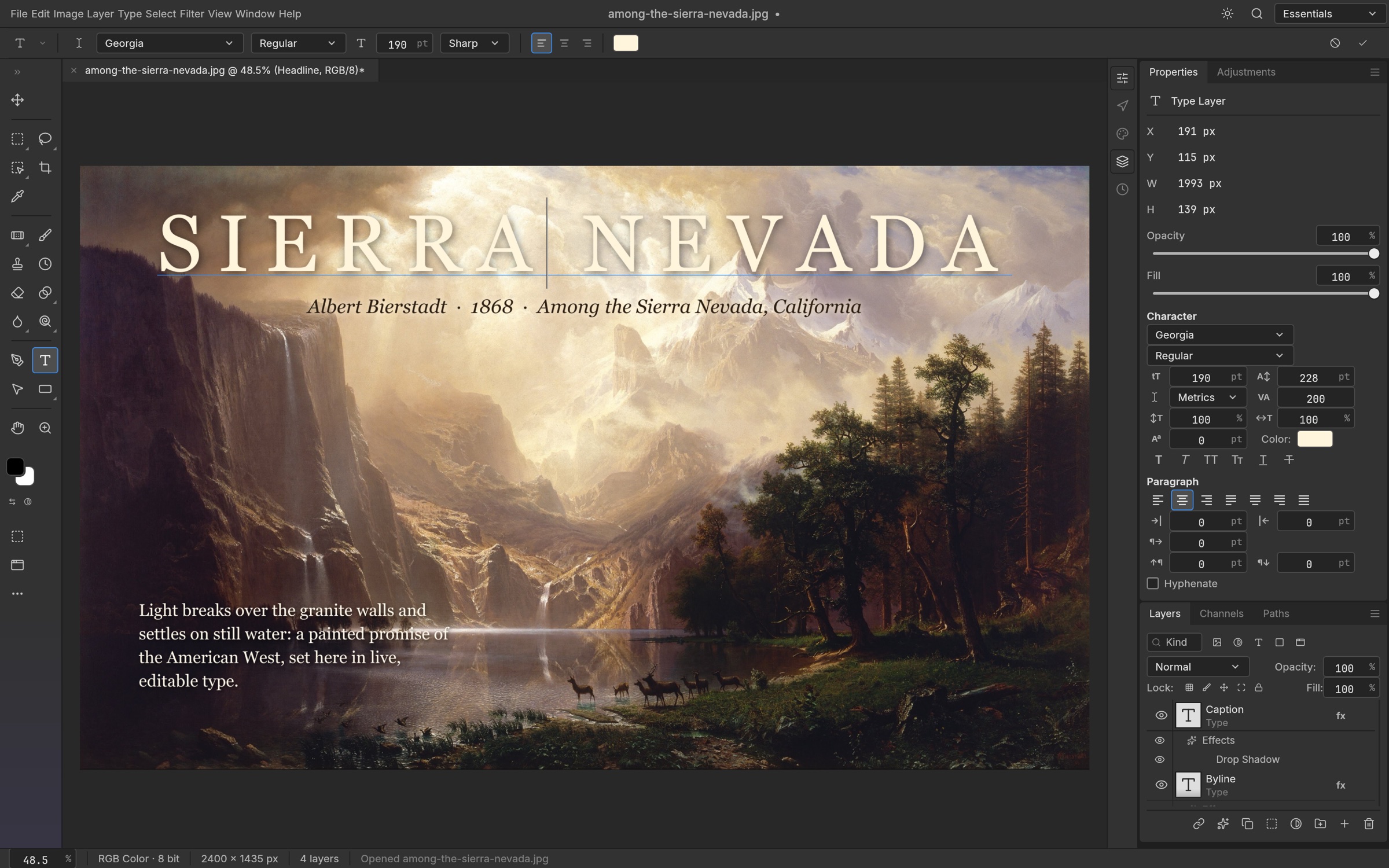
Click the color swatch in the Type options bar or Character panel to open the full Color Picker. It offers the color field, component strip, HSB/RGB/Lab/CMYK and hex fields, and current/new swatches. Selecting characters targets that range; with no character selection, the active text layer is targeted. OK applies the colour change; Cancel leaves the text and history unchanged. The foreground color is independent of this dialog.
The existing canvas eyedropper continues to sample the document while the Color Picker is open, including canvas zoom and pan. This works without operating-system screen-capture permission.
Enter a colour precisely#
The colour field and component strip provide a visual way to choose a colour. Use the HSB, RGB, Lab, CMYK or hexadecimal fields when you have a particular value to enter. Compare the current and new swatches before accepting the change. The foreground colour is separate from the text-colour dialog: changing one does not mean you have changed the other.
Sample outside the document#
In browsers that expose the standard EyeDropper API, Pick screen color invokes the browser’s own sampling interface. The browser decides whether the API is available and how magnification works. If it is unavailable, use the document eyedropper or enter colour values directly.
A full colour dialog receives the sampled colour for inspection; choose OK to commit it. Compact colour popups use their normal immediate-edit behaviour. Existing alpha is preserved when sampling into these controls.
A reliable text-colour workflow#
- Select the characters you want to recolour, or select the type layer if the whole layer should change.
- Open the colour swatch in the Type options bar or Character panel.
- Enter a value or sample the document, then compare the new and current swatches.
- Choose OK to apply, or Cancel to leave the text and history unchanged.
Do not treat a missing screen-pick action as a problem with your document. Browser support is separate from the colour fields and document eyedropper.
Continue reading
Sources and edition notes
Adapted for the browser edition from the pinned PhotoCraft 0.9.0 source. Upstream documentation may also describe desktop workflows.
- docs/color-picker.md — Adapted from the upstream documentation for this pinned release.
Try it in Photo
Save your work before leaving the editor. Review the editor overview for file formats and browser limitations.
Open Photo ↗