Masks and channels
Hide, reveal and isolate image content while preserving editable layers.
Applies to Photo 0.9.0 on photo.et.
How it works#
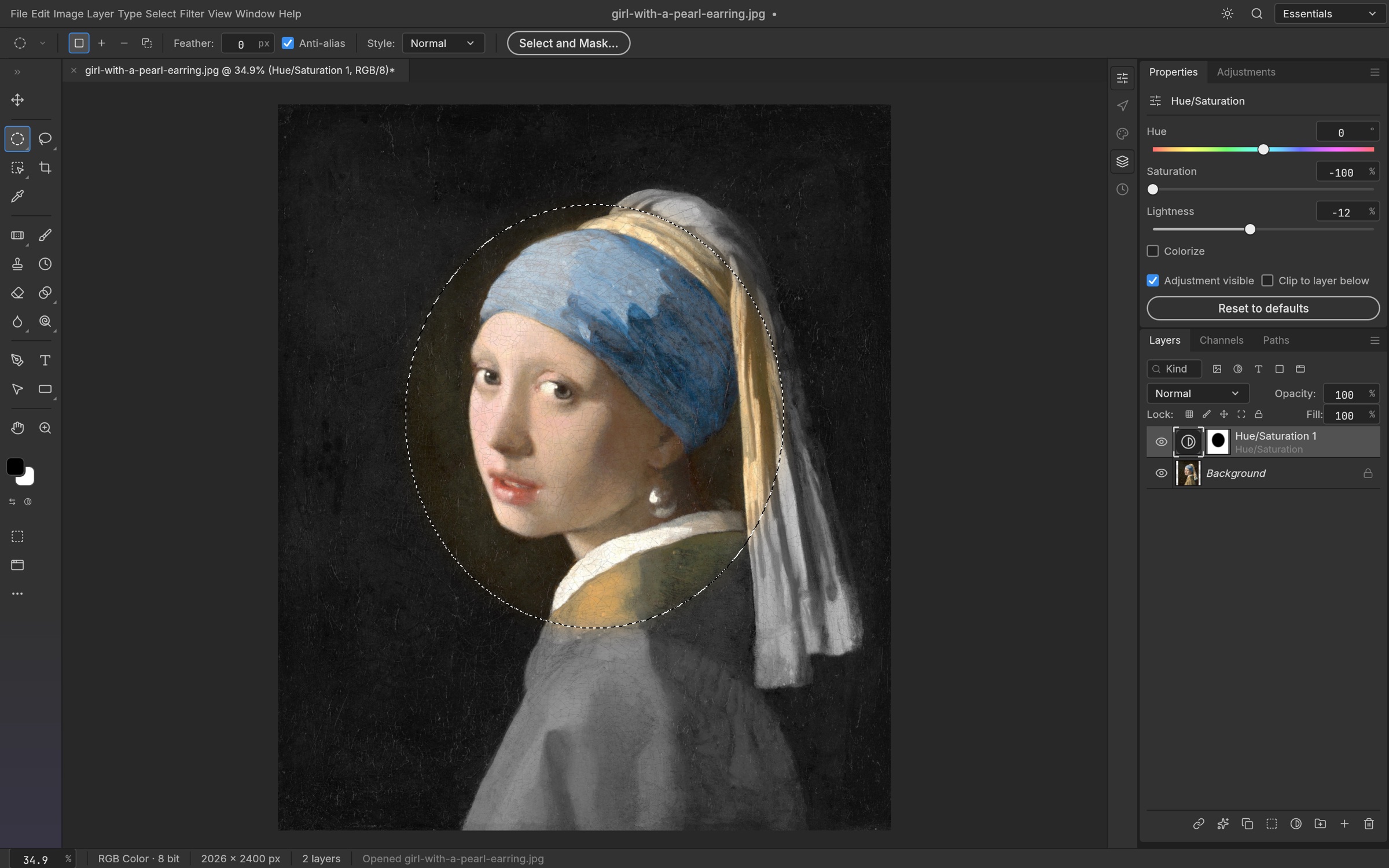
A layer mask controls which parts of a layer remain visible without deleting those pixels. Reveal All starts with the layer visible, while Hide All starts with it concealed. Reveal Selection and Hide Selection turn an existing selection into a mask. This makes masks useful for subject cutouts, composites and adjustments that should affect only part of a photograph.
Before painting, check whether the layer’s image thumbnail or its mask is selected. Painting the image changes pixels; painting the mask changes visibility. Refine the transition with a suitable brush and inspect the edge against the actual background of your composition. A soft edge that looks good against white may reveal a halo against a darker scene.
Vector masks use paths for clean geometric boundaries. Linking a mask to its layer keeps their positions coordinated; unlinking allows separate positioning. Channels provide access to image channels and saved alpha information, while Quick Mask is another way to work with a selection. Applying a mask commits its visibility result, so retain an editable copy before using it as a final cleanup step.
Try it#
- Make a selection around the area to retain.
- Choose Layer → Layer Mask → Reveal Selection.
- Select the mask thumbnail and refine visibility with the brush.
- Toggle the mask to compare and save a layered copy.
Feature reference
- Pixel masks
- Reveal, hide, enable, link, apply or delete a layer mask.
- Vector masks
- Use the current path as a clean, editable boundary.
- Channels
- Work with image channels, alpha channels and Quick Mask.
Sources and edition notes
Adapted for the browser edition from the pinned PhotoCraft 0.9.0 source. Upstream documentation may also describe desktop workflows.
- crates/ui-egui/src/mask_props_ui.rs — Mask property controls.
- crates/ui-egui/src/channels_panel.rs — Channels UI.
- crates/ui-egui/src/menu_catalog.rs — Mask operations.
Try it in Photo
Save your work before leaving the editor. Review the editor overview for file formats and browser limitations.
Open Photo ↗